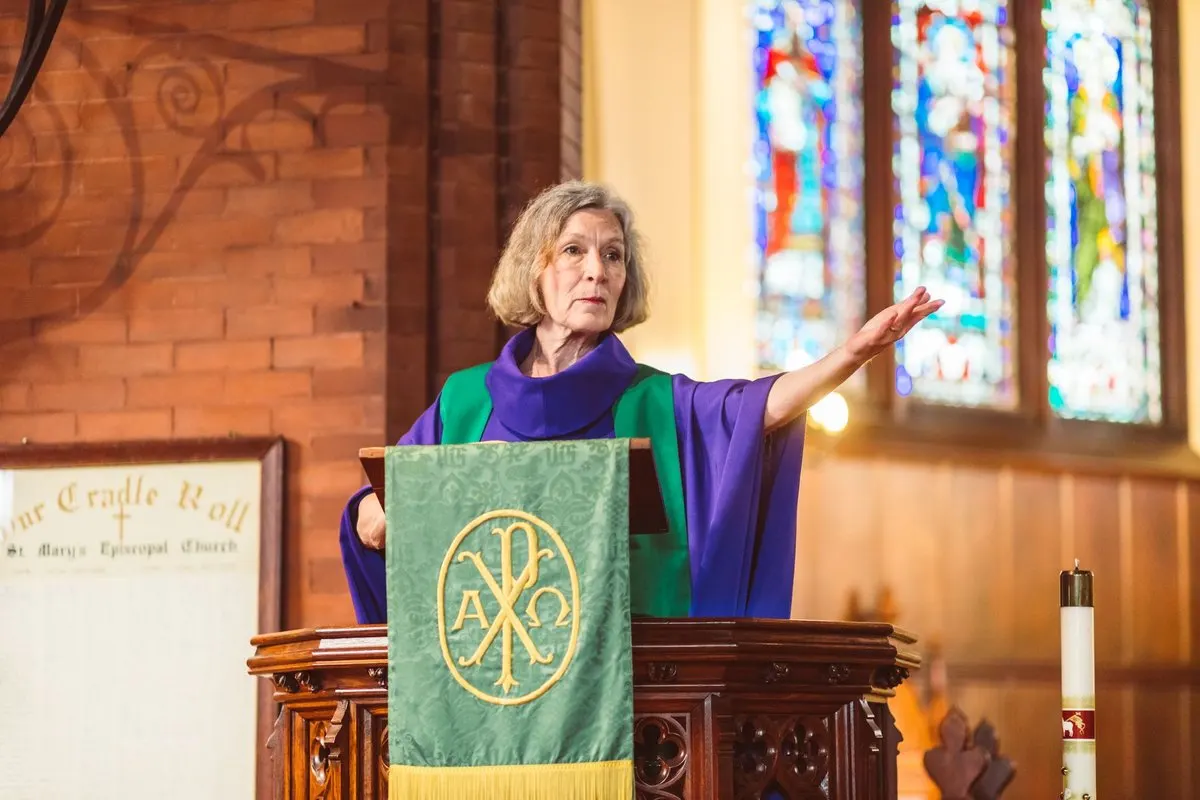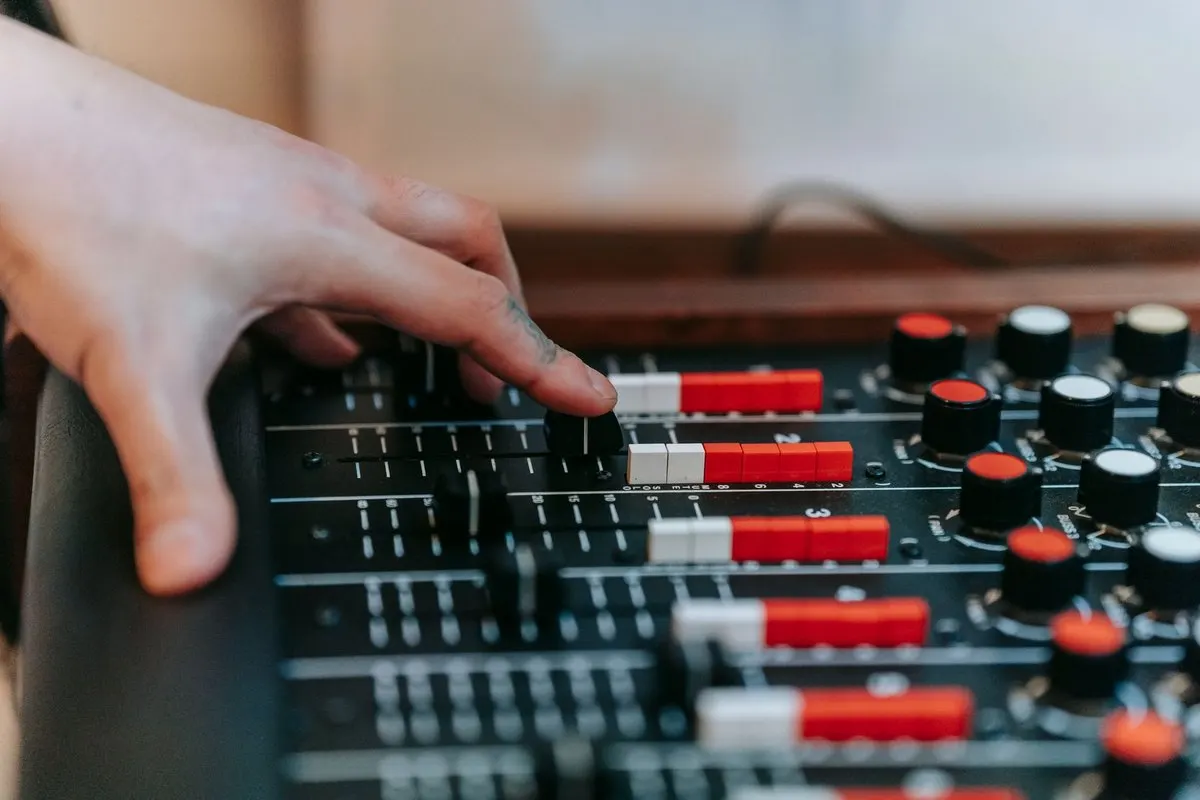
The microphone sounds clear through the church speakers, but the translation computer barely receives a voice. Turn it up and distortion appears. The fault may be between the mixer and the browser: the signal filling the room is not necessarily the one reaching the computer.
To connect a mixer to a computer for church translation, you need a compatible audio output selected as the browser’s input. Use a mixer’s USB connection if it sends audio to the computer, or a line output connected through an audio interface. The right route depends on the model and its configuration. This guide helps you prepare that connection and check it with someone listening to the translation.
Map the route before buying a cable
You should be able to describe your setup like this:
Preacher’s microphone → mixer → USB audio or audio interface → computer browser → MoriahTech IA session → listener’s phone.
An interface converts a compatible analogue output into an input the computer can receive. If the mixer already provides that function over USB, a separate interface may be unnecessary. Check the manual for the exact model: a USB socket or a physically fitting adapter does not establish that this route is available.
Ask the sound operator for the mixer model, an output they can reserve for speech and the device that will receive it. These details help identify what is missing. The church translation equipment guide covers the overall budget; this guide focuses on the connection.
Choose direct USB or an audio interface
Scroll the table to see every column.
| What the mixer offers | Route to investigate | What to confirm |
|---|---|---|
| USB audio sent to a computer | Mixer → USB → computer | Compatibility, any required driver and channels sent |
| An available line output | Mixer → interface line input → USB → computer | Signal level, connectors and speech routing |
| Only an identified output for passive speakers | Ask the technician for another suitable output | Do not connect it to a line-input interface |
| Unknown model and outputs | Consult the manual and sound operator | Identify the signal before buying adapters |
Shure explains that line and microphone signals have different levels. A line output connected to an input intended for a microphone can distort. Check labels and the manual as well as the connectors.
Focusrite distinguishes microphone, line and instrument inputs and warns that an amplified speaker output can damage a line input. Have the person who knows your equipment validate the actual connection.
Prepare a feed that makes the sermon understandable
Before adjusting the computer, agree on the voices the translator needs: the preacher, readings and any other contributions you want included. Request a dedicated feed if the setup supports one. This might be an auxiliary send or another configurable route; names and behaviour vary by mixer.
Ask the technician:
- Does the output receive every microphone used for speech?
- What happens to the feed when a channel is muted or turned down in the room?
- Does it include music, computer playback or effects that obscure speech?
- Can we listen to that output before starting translation?
There is no universal pre-fader or post-fader setting. Check what happens when controls move during your own service and document the result. Keep translated audio in listeners’ headphones so it does not return to the source microphone.
Check the input in four steps
- Check the mixer output. Ask the preacher to use the usual microphone. The technician should confirm that the voice reaches the agreed output.
- Check the computer input. Connect the validated route and select the device in sound settings. Verify that the input indicator responds to speech. If a driver is required, use the manufacturer’s version for your operating system.
- Check the browser input. Allow microphone access and select the intended device in the available settings. Make sure the laptop’s built-in microphone has not been selected accidentally.
- Check the listener experience. Set source and target languages, share public access and listen from another phone with headphones. Visitors join in a browser without an account or app installation.
With MoriahTech IA for churches, each language channel has one target language. Check capacity and configuration before offering two simultaneous targets. The phone listening guide explains visitors’ access.
Locate the stage when something fails
Scroll the table to see every column.
| What you observe | What to check first |
|---|---|
| No signal at the computer | Assigned output, cable, interface and input device |
| Computer receives speech but browser does not | Browser microphone permission and selected input |
| Speech is distorted before translation | Level and compatibility between output and input |
| Too much room sound | Whether the laptop microphone was selected accidentally |
| Clear original speech but missing meaning | Review the passage and language pair with a bilingual person |
Change one thing at a time and repeat the same sentence. Changing the cable, level, input and language together makes it hard to know what fixed the problem. The church audio troubleshooting guide develops the signal checks.
Leave a connection sheet another volunteer can follow
Record the mixer model, output name, included channels, any interface, computer input and browser input. Add who may change that configuration and where the cables are kept. Exclude passwords and private links from a sheet you plan to distribute.
Rehearse with a short reading containing a Bible reference, a name and a negative statement. For example: “We are reading Luke 15, verse 4. Martha coordinates the welcome team. We will not change the meeting time.” This is an invented test passage. Ask the listener to explain what they understood and a bilingual person to check the result.
Consider the route prepared when another team member can repeat it and the listener can join and understand the passage. That informs the next rehearsal; it does not guarantee every sermon’s translation quality or the whole network’s capacity.
Try your connection with the platform
Start with the 14-day trial without a card, including 180 total minutes, three sessions, up to 120 minutes per session, 25 listeners per session and one concurrent session. It includes one technical check of up to five minutes, using minutes without counting as a session. Reserve capacity for the listener rehearsal and check the current plans.
Bring together your sound operator and two listeners, connect your own audio feed and check a passage before Sunday.